Urlaubsplaner 2027: kostenlose Excel-Vorlage für Ihr Team
Mit unserem kostenlosen Urlaubsplaner 2027 als Excel-Vorlage können Sie die Urlaubstage Ihres Teams für das ganze Jahr eintragen. Sie sehen, wer wann frei hat, welche Tage sich überschneiden und wie viel Urlaub noch übrig ist.
Datum: 3. November 2026
Autor*in: Pia Birk
Urlaubsplaner 2027 als Excel-Vorlage
Laden Sie die Excel-Vorlage herunter und planen Sie den Urlaub Ihres Teams. Feiertage, Überschneidungen und Resturlaub haben Sie dabei im Blick.
Feiertage für Deutschland und Österreich hinterlegt
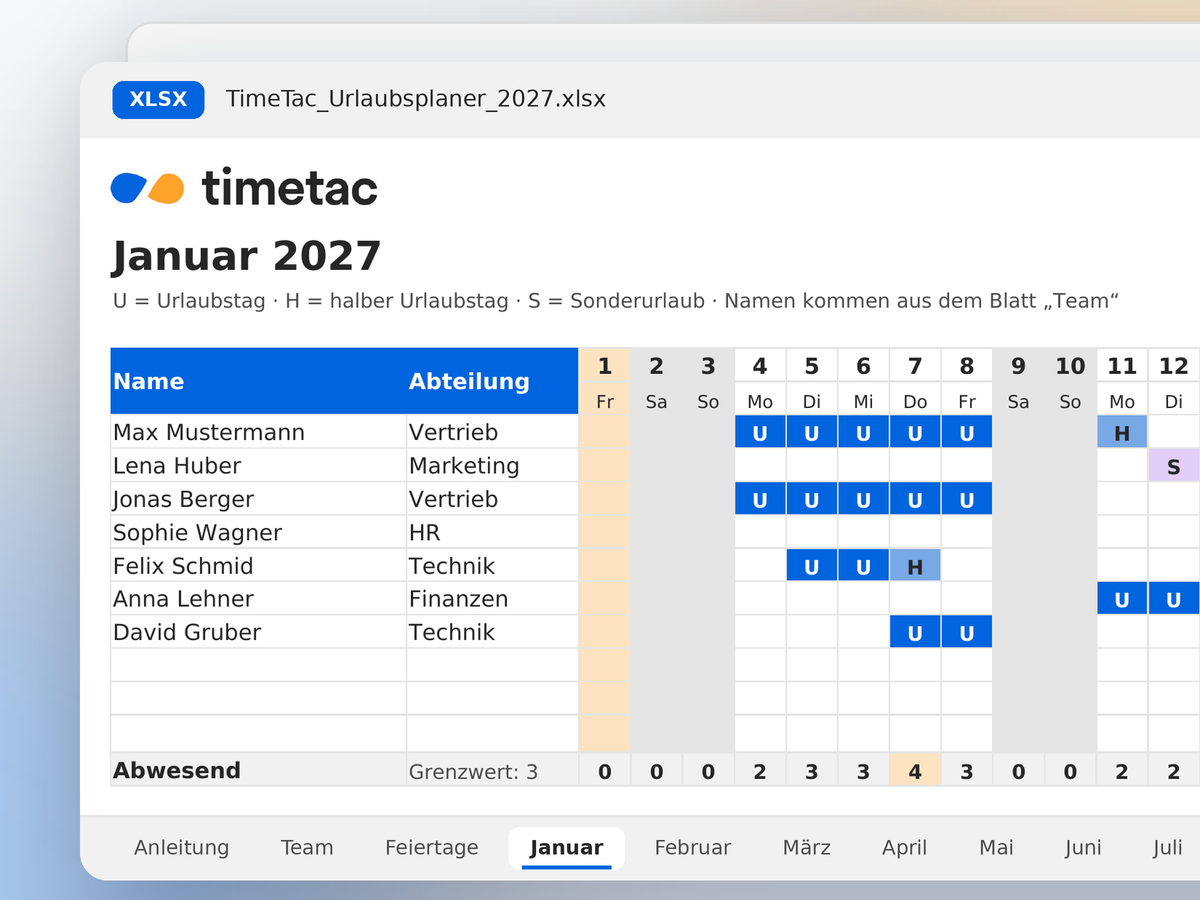
Die Vorlage besteht aus einer Teamübersicht und einem Urlaubskalender für 2027. Im Tabellenblatt „Team“ hinterlegen Sie die Namen und Urlaubsansprüche Ihrer Mitarbeitenden. Im Kalender tragen Sie anschließend die geplanten Urlaubstage ein.
Die Feiertage für Deutschland und Österreich sind berücksichtigt. Halbe Urlaubstage lassen sich ebenfalls eintragen. So sehen Sie nicht nur, wer wann Urlaub hat, sondern auch, wie viele Tage bereits verplant sind.
Die Vorlage ist für Teams mit bis zu 20 Personen ausgelegt.
Urlaubsplan erstellen: So nutzen Sie die Vorlage
In fünf Schritten erstellen Sie mit der Vorlage den Urlaubsplan für Ihr Team. Die Einrichtung dauert rund zehn Minuten.
Land und Grenzwert festlegen. Wählen Sie im Blatt „Team“ Deutschland oder Österreich. Legen Sie fest, wie viele Personen höchstens gleichzeitig abwesend sein dürfen.
Team erfassen. Tragen Sie alle Mitarbeitenden mit Urlaubsanspruch und Resturlaub aus dem Vorjahr ein. Die Namen erscheinen automatisch in allen Monatsblättern.
Urlaub eintragen. Setzen Sie im Monatsblatt beim jeweiligen Tag ein Kürzel: U für einen Urlaubstag, H für einen halben Tag, S für Sonderurlaub. Sonderurlaub zählt nicht zum Urlaubsanspruch.
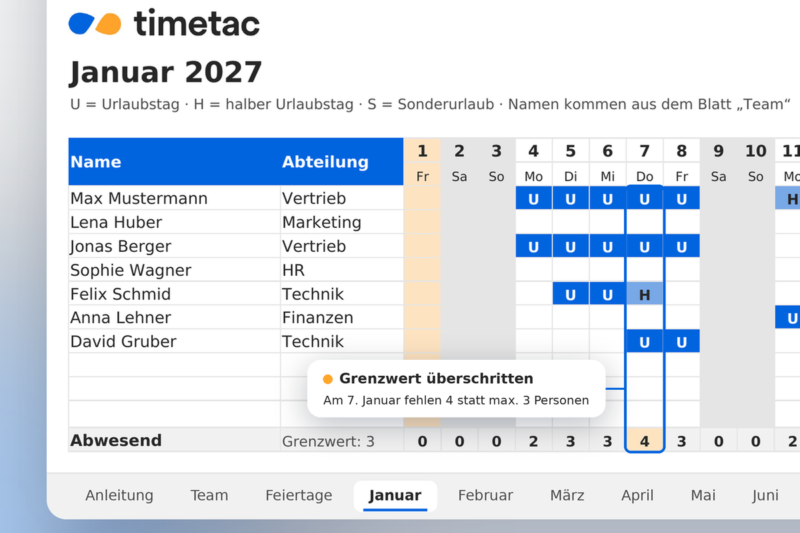
Überschneidungen prüfen. Die Zeile „Abwesend“ zeigt je Tag, wie viele Personen fehlen. Überschreitet ein Tag Ihren Grenzwert, ist er orange markiert.
Urlaubskonten im Blick behalten. Im Blatt „Team“ sehen Sie geplante und verbleibende Tage je Person. Ein negativer Rest ist markiert, bevor jemand mehr Urlaub plant, als ihm zusteht.
Tipp: Sammeln Sie die Urlaubswünsche für das ganze Jahr bis zu einem festen Stichtag, zum Beispiel Ende Januar. So sehen Sie Engpässe rund um Ostern, Sommerferien und Weihnachten, bevor die ersten Anträge genehmigt sind. Wann sich Urlaubstage 2027 besonders lohnen, zeigt unser Überblick zu den Brückentagen 2027.
Was ein guter Urlaubsplaner enthalten sollte
Ein Urlaubskalender soll vor allem eine Frage beantworten: Wer ist wann nicht da – und ist das Team trotzdem ausreichend besetzt?
Feiertage und Arbeitstage berücksichtigen
Nicht jeder freie Tag kostet einen Urlaubstag. Feiertage und arbeitsfreie Tage sollten deshalb bei der Berechnung berücksichtigt werden. Wichtig ist dabei, dass die hinterlegten Arbeitstage zum jeweiligen Arbeitszeitmodell passen.
Überschneidungen früh erkennen
Wenn mehrere Personen gleichzeitig Urlaub nehmen möchten, kann es eng werden. Besonders in kleinen Teams oder während der Schulferien lohnt sich deshalb ein gemeinsamer Blick auf den Kalender. So bleibt genug Zeit, Vertretungen zu organisieren und Urlaubswünsche abzustimmen.
Resturlaub im Blick behalten
Wie viele Urlaubstage sind bereits verplant? Wie viele stehen noch zur Verfügung? Ein guter Urlaubsplaner macht beides sichtbar. Damit lassen sich weitere Anträge besser einschätzen und offene Urlaubstage frühzeitig ansprechen.
Wie Sie Urlaubswünsche fair verteilen, wenn mehrere Personen dieselben Tage wollen, erklärt der Artikel Urlaubsplanung im Team.
Wann Excel als Urlaubsplaner nicht mehr ausreicht
Für kleine Teams ist eine Excel-Vorlage oft völlog ausreichend. Alle Urlaubstage stehen in einer Tabelle und Änderungen sind schnell eingetragen.
Schwieriger wird es, wenn mehrere Personen die Datei bearbeiten, Urlaubsanträge per E-Mail eingehen oder unterschiedliche Führungskräfte Anträge freigeben müssen. Dann stellt sich schnell die Frage, welche Version der Tabelle eigentlich aktuell ist.
Eine digitale Urlaubsverwaltung nimmt Ihnen diese Abstimmung ab. Mitarbeitende stellen ihre Anträge direkt im System, Führungskräfte können sie dort genehmigen und der Urlaubskalender wird entsprechend aktualisiert.
Mit TimeTac lassen sich außerdem Resturlaub und andere Abwesenheiten zentral verwalten. Gerade bei wachsenden Teams spart das Rückfragen und die manuelle Pflege mehrerer Listen.

Häufig gestellte Fragen.
Was ist ein Urlaubsplaner?
Ein Urlaubsplaner zeigt, wer im Team wann Urlaub hat. So lassen sich Abwesenheiten abstimmen, Überschneidungen erkennen und Vertretungen rechtzeitig planen.
Ist die Urlaubsplaner-Vorlage kostenlos?
Ja. Sie können die Excel-Vorlage kostenlos herunterladen und für Ihr Team anpassen.
Kann ich die Urlaubsplaner-Vorlage auch in Österreich verwenden?
Ja. Wählen Sie im Tabellenblatt „Team“ Österreich aus, damit die entsprechenden Feiertage berücksichtigt werden.
Für wie viele Mitarbeitende ist die Vorlage geeignet?
Die Vorlage bietet Platz für bis zu 20 Mitarbeitende. Für größere Teams oder mehrere Abteilungen ist eine digitale Urlaubsverwaltung meist praktischer.
Kann ich auch halbe Urlaubstage eintragen?
Ja. Tragen Sie dafür das Kürzel „H“ ein. Die Vorlage rechnet automatisch mit 0,5 Urlaubstagen.
Welche Tage werden nicht als Urlaub gezählt?
Feiertage und arbeitsfreie Tage werden nicht vom Urlaubsanspruch abgezogen. Auch Sonderurlaub wird getrennt vom regulären Urlaub erfasst. Die Berechnung hängt von den hinterlegten Einstellungen und Arbeitstagen ab.
Darf der Arbeitgeber festlegen, wann Mitarbeitende Urlaub nehmen?
In Deutschland muss der Arbeitgeber die Urlaubswünsche grundsätzlich berücksichtigen. Dringende betriebliche Gründe oder sozial vorrangige Urlaubswünsche anderer Mitarbeitender können dagegensprechen (§ 7 Abs. 1 BUrlG).
In Österreich müssen Arbeitgeber und Mitarbeitende den Urlaubszeitpunkt grundsätzlich gemeinsam vereinbaren.
Mehr dazu erfahren Sie in unserem Artikel zur Urlaubsplanung im Team.
Weitere Blogartikel.
Hier finden sich Informationen, Tipps und Tricks und weitere spannende Beiträge zu den Themen Produktivität, Zeitmanagement und Zeitwirtschaft.
We firmly believe that the internet should be available and accessible to anyone, and are committed to providing a website that is accessible to the widest possible audience,
regardless of circumstance and ability.
To fulfill this, we aim to adhere as strictly as possible to the World Wide Web Consortium’s (W3C) Web Content Accessibility Guidelines 2.1 (WCAG 2.1) at the AA level.
These guidelines explain how to make web content accessible to people with a wide array of disabilities. Complying with those guidelines helps us ensure that the website is accessible
to all people: blind people, people with motor impairments, visual impairment, cognitive disabilities, and more.
This website utilizes various technologies that are meant to make it as accessible as possible at all times. We utilize an accessibility interface that allows persons with specific
disabilities to adjust the website’s UI (user interface) and design it to their personal needs.
Additionally, the website utilizes an AI-based application that runs in the background and optimizes its accessibility level constantly. This application remediates the website’s HTML,
adapts Its functionality and behavior for screen-readers used by the blind users, and for keyboard functions used by individuals with motor impairments.
If you’ve found a malfunction or have ideas for improvement, we’ll be happy to hear from you. You can reach out to the website’s operators by using the following email info@financiallifepark.at
Screen-reader and keyboard navigation
Our website implements the ARIA attributes (Accessible Rich Internet Applications) technique, alongside various different behavioral changes, to ensure blind users visiting with
screen-readers are able to read, comprehend, and enjoy the website’s functions. As soon as a user with a screen-reader enters your site, they immediately receive
a prompt to enter the Screen-Reader Profile so they can browse and operate your site effectively. Here’s how our website covers some of the most important screen-reader requirements,
alongside console screenshots of code examples:
Screen-reader optimization: we run a background process that learns the website’s components from top to bottom, to ensure ongoing compliance even when updating the website.
In this process, we provide screen-readers with meaningful data using the ARIA set of attributes. For example, we provide accurate form labels;
descriptions for actionable icons (social media icons, search icons, cart icons, etc.); validation guidance for form inputs; element roles such as buttons, menus, modal dialogues (popups),
and others. Additionally, the background process scans all the website’s images and provides an accurate and meaningful image-object-recognition-based description as an ALT (alternate text) tag
for images that are not described. It will also extract texts that are embedded within the image, using an OCR (optical character recognition) technology.
To turn on screen-reader adjustments at any time, users need only to press the Alt+1 keyboard combination. Screen-reader users also get automatic announcements to turn the Screen-reader mode on
as soon as they enter the website.
These adjustments are compatible with all popular screen readers, including JAWS and NVDA.
Keyboard navigation optimization: The background process also adjusts the website’s HTML, and adds various behaviors using JavaScript code to make the website operable by the keyboard. This includes the ability to navigate the website using the Tab and Shift+Tab keys, operate dropdowns with the arrow keys, close them with Esc, trigger buttons and links using the Enter key, navigate between radio and checkbox elements using the arrow keys, and fill them in with the Spacebar or Enter key.Additionally, keyboard users will find quick-navigation and content-skip menus, available at any time by clicking Alt+1, or as the first elements of the site while navigating with the keyboard. The background process also handles triggered popups by moving the keyboard focus towards them as soon as they appear, and not allow the focus drift outside it.
Users can also use shortcuts such as “M” (menus), “H” (headings), “F” (forms), “B” (buttons), and “G” (graphics) to jump to specific elements.
Disability profiles supported in our website
Epilepsy Safe Mode: this profile enables people with epilepsy to use the website safely by eliminating the risk of seizures that result from flashing or blinking animations and risky color combinations.
Visually Impaired Mode: this mode adjusts the website for the convenience of users with visual impairments such as Degrading Eyesight, Tunnel Vision, Cataract, Glaucoma, and others.
Cognitive Disability Mode: this mode provides different assistive options to help users with cognitive impairments such as Dyslexia, Autism, CVA, and others, to focus on the essential elements of the website more easily.
ADHD Friendly Mode: this mode helps users with ADHD and Neurodevelopmental disorders to read, browse, and focus on the main website elements more easily while significantly reducing distractions.
Blindness Mode: this mode configures the website to be compatible with screen-readers such as JAWS, NVDA, VoiceOver, and TalkBack. A screen-reader is software for blind users that is installed on a computer and smartphone, and websites must be compatible with it.
Keyboard Navigation Profile (Motor-Impaired): this profile enables motor-impaired persons to operate the website using the keyboard Tab, Shift+Tab, and the Enter keys. Users can also use shortcuts such as “M” (menus), “H” (headings), “F” (forms), “B” (buttons), and “G” (graphics) to jump to specific elements.
Additional UI, design, and readability adjustments
Font adjustments – users, can increase and decrease its size, change its family (type), adjust the spacing, alignment, line height, and more.
Color adjustments – users can select various color contrast profiles such as light, dark, inverted, and monochrome. Additionally, users can swap color schemes of titles, texts, and backgrounds, with over seven different coloring options.
Animations – person with epilepsy can stop all running animations with the click of a button. Animations controlled by the interface include videos, GIFs, and CSS flashing transitions.
Content highlighting – users can choose to emphasize important elements such as links and titles. They can also choose to highlight focused or hovered elements only.
Audio muting – users with hearing devices may experience headaches or other issues due to automatic audio playing. This option lets users mute the entire website instantly.
Cognitive disorders – we utilize a search engine that is linked to Wikipedia and Wiktionary, allowing people with cognitive disorders to decipher meanings of phrases, initials, slang, and others.
Additional functions – we provide users the option to change cursor color and size, use a printing mode, enable a virtual keyboard, and many other functions.
Browser and assistive technology compatibility
We aim to support the widest array of browsers and assistive technologies as possible, so our users can choose the best fitting tools for them, with as few limitations as possible. Therefore, we have worked very hard to be able to support all major systems that comprise over 95% of the user market share including Google Chrome, Mozilla Firefox, Apple Safari, Opera and Microsoft Edge, JAWS and NVDA (screen readers).
Notes, comments, and feedback
Despite our very best efforts to allow anybody to adjust the website to their needs. There may still be pages or sections that are not fully accessible, are in the process of becoming accessible, or are lacking an adequate technological solution to make them accessible. Still, we are continually improving our accessibility, adding, updating and improving its options and features, and developing and adopting new technologies. All this is meant to reach the optimal level of accessibility, following technological advancements. For any assistance, please reach out to info@financiallifepark.at